Bare Metal
Overview
Voltage Park offers Bare Metal as the ultimate choice for performance, control, and customization. By removing virtualization layers, they provide direct access to hardware for maximum efficiency. Our Voltage Park On Demand platform allows you to deploy, manage, and cancel Bare Metal instances as needed.
How to Deploy Bare Metal
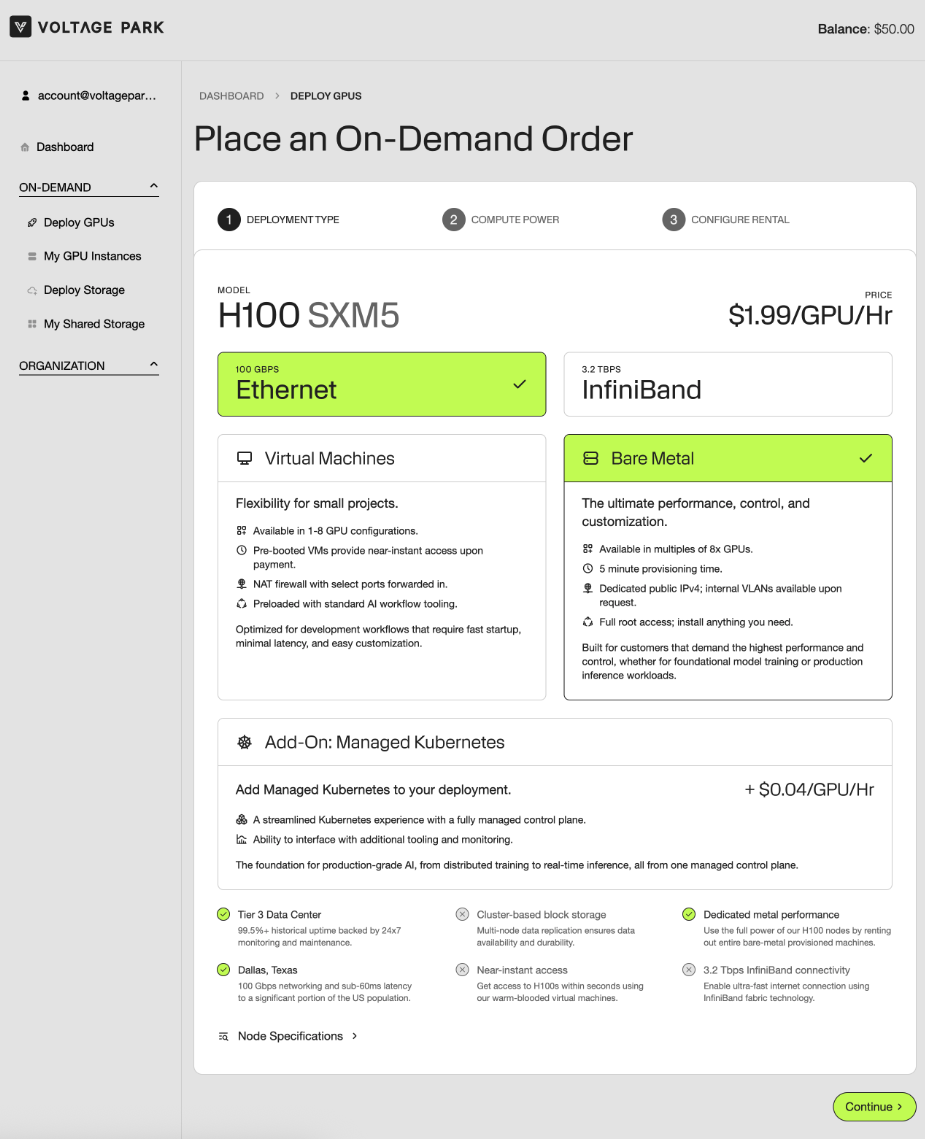
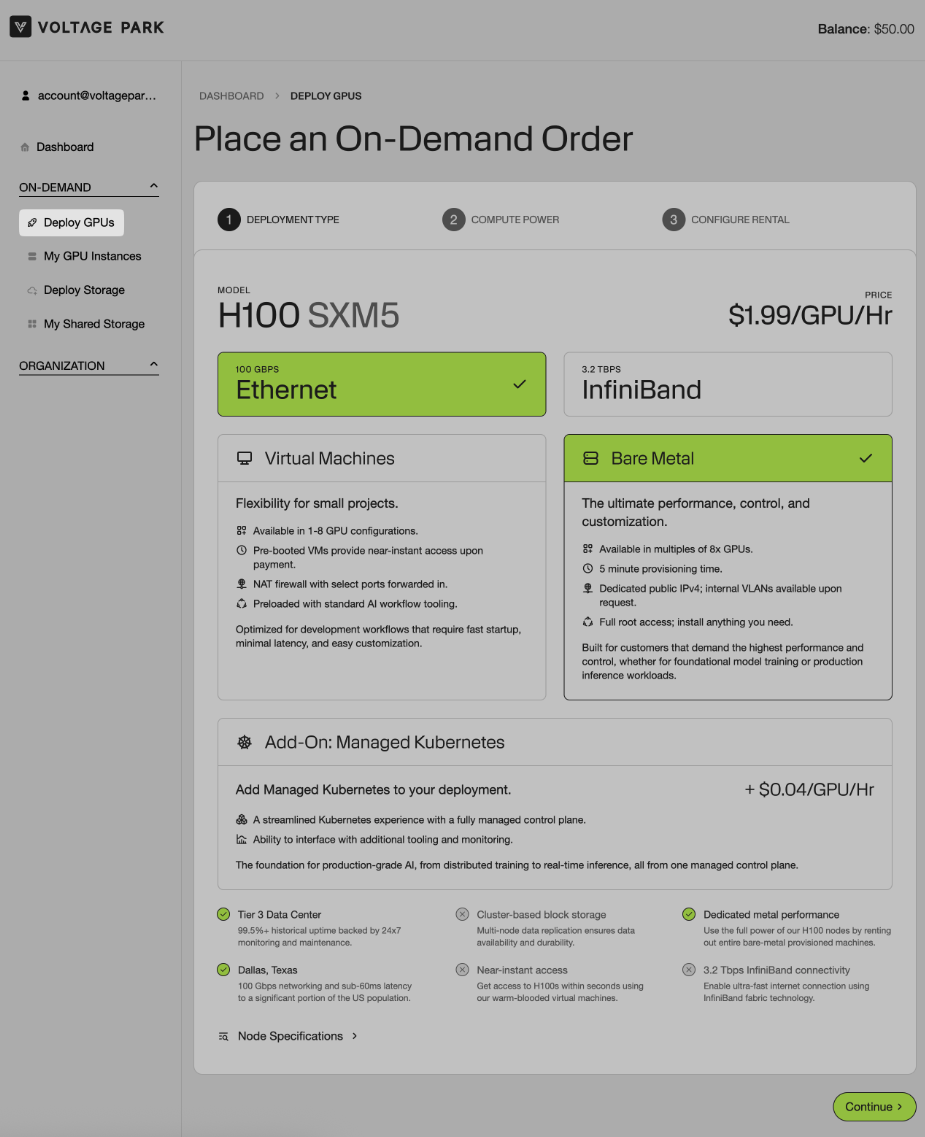
Navigate to the Deploy GPUs section.
Select your networking option (Ethernet or InfiniBand) > Bare Metal > Optionally: select the Managed Kubernetes Add-On > Continue.
Configure your Bare Metal instance by selecting the Number of GPUs (in multiples of 8x GPUs) > Continue.
Provide your Public SSH Key(s) > Select/Add organizational SSH public key(s) or expand the Advanced Configuration to add one-time public SSH public key(s).
If you choose Add-Ons, you can configure them as well > Continue.
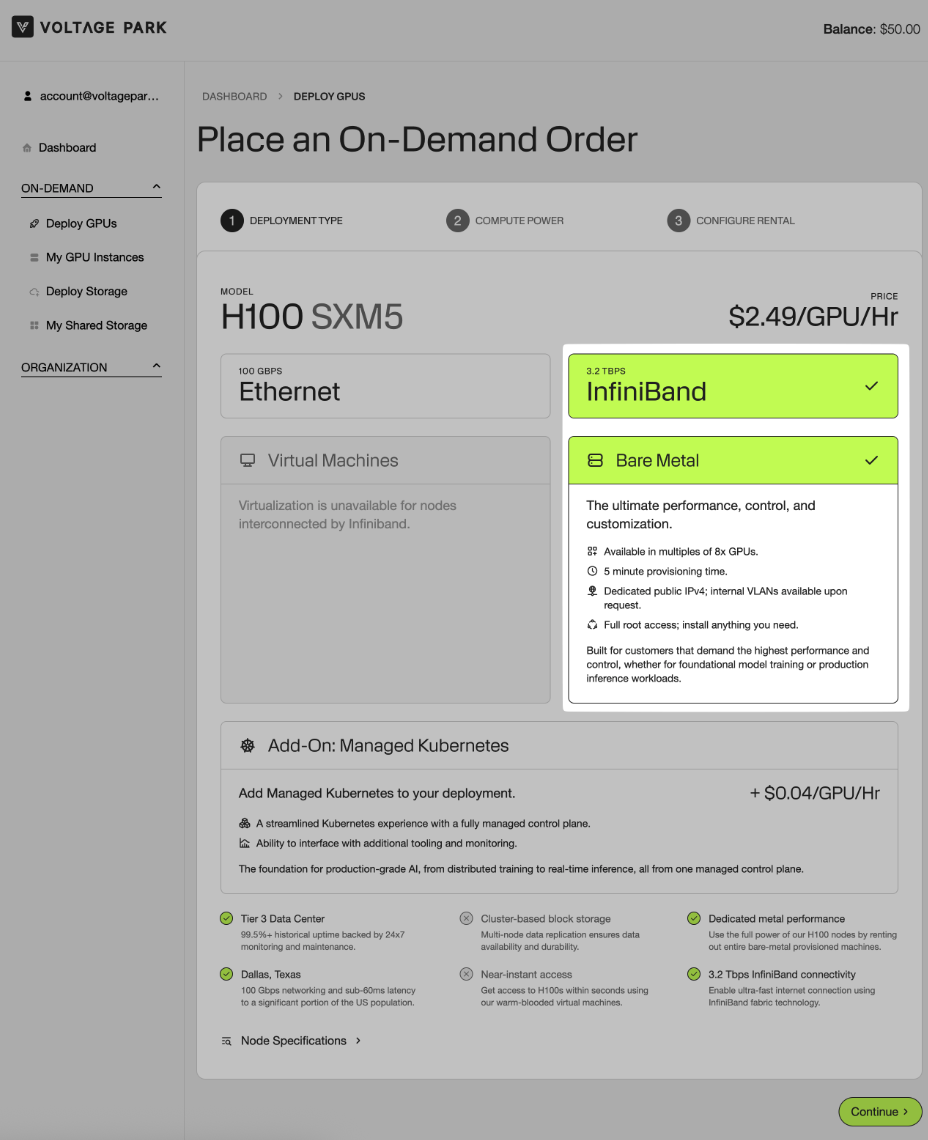
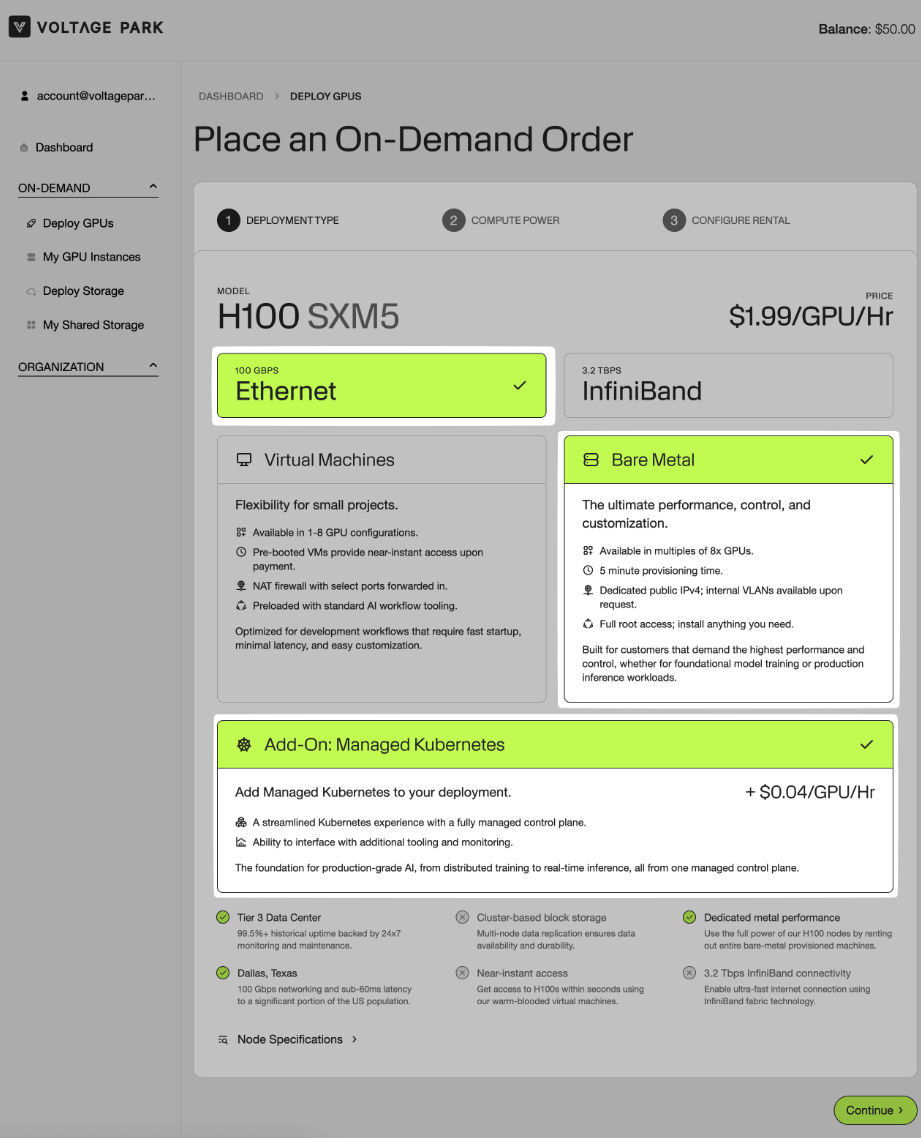
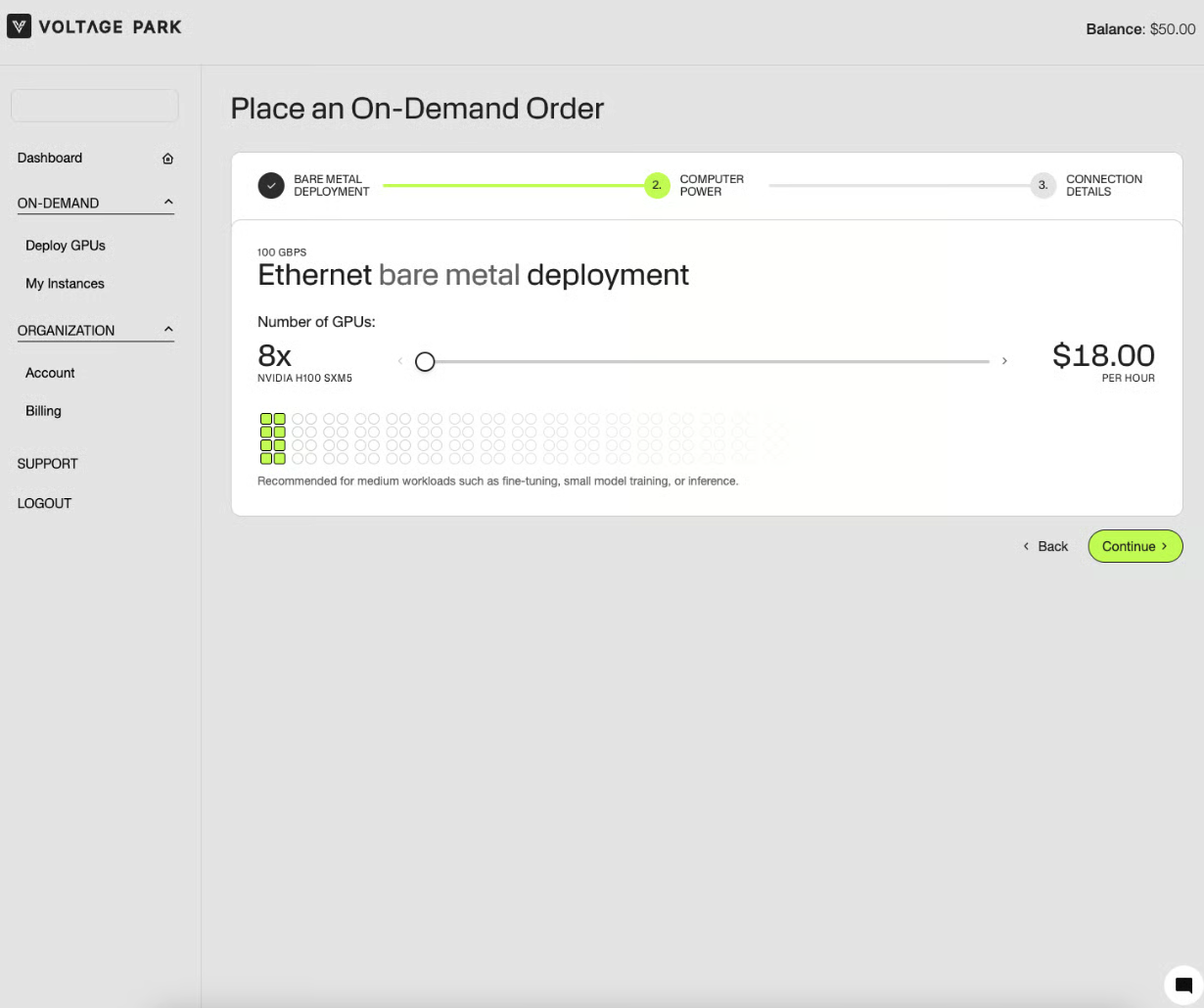
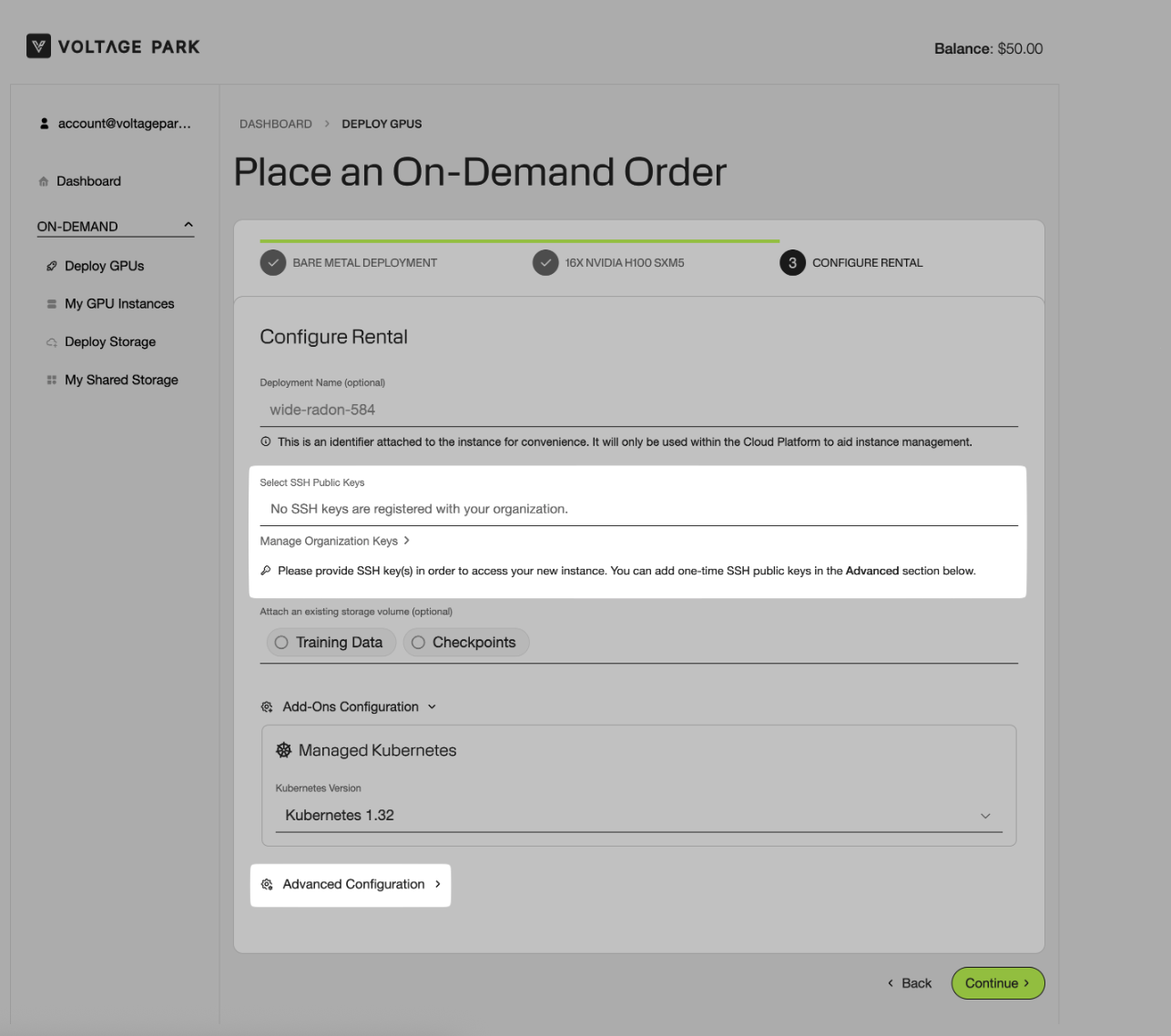
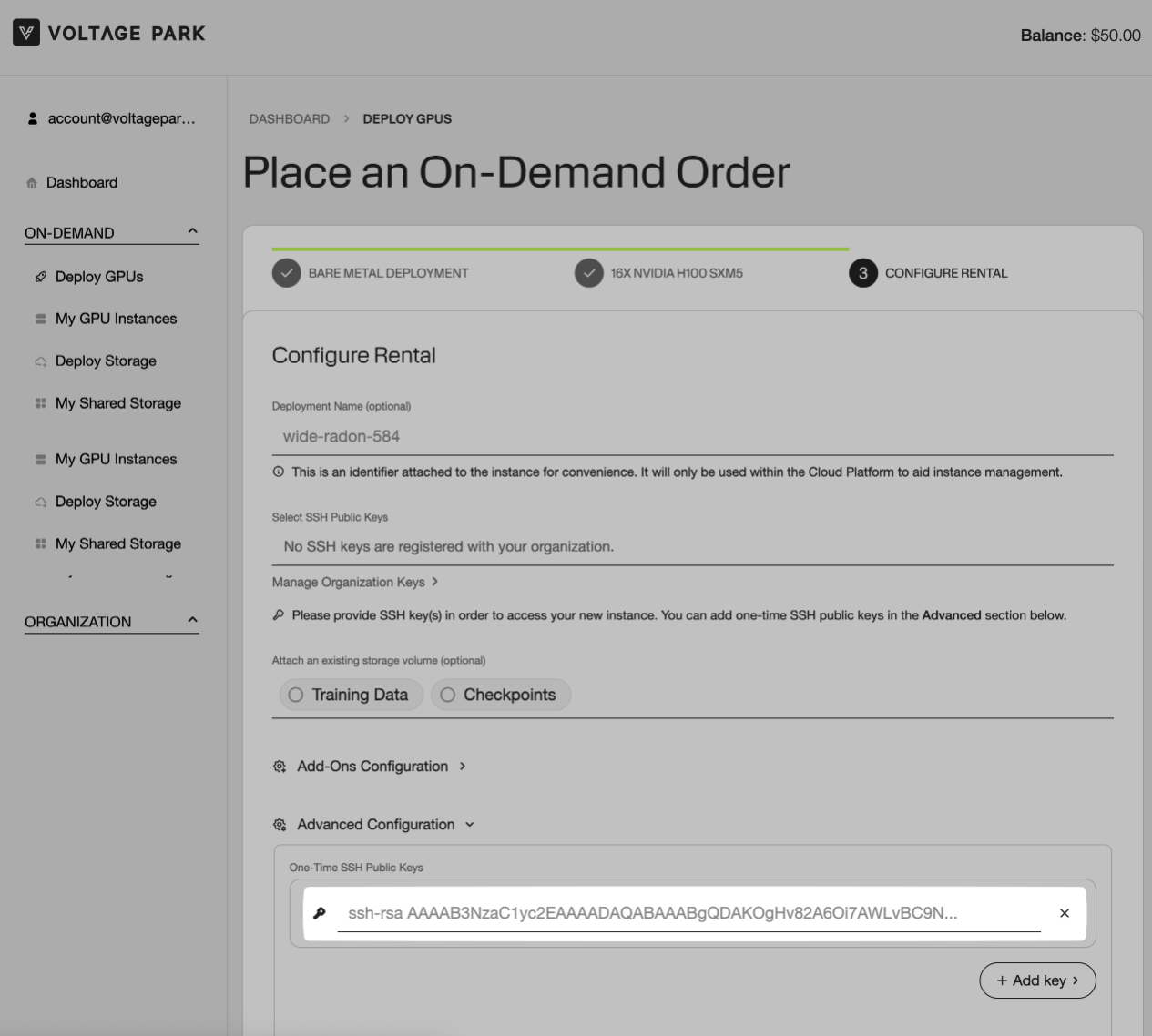
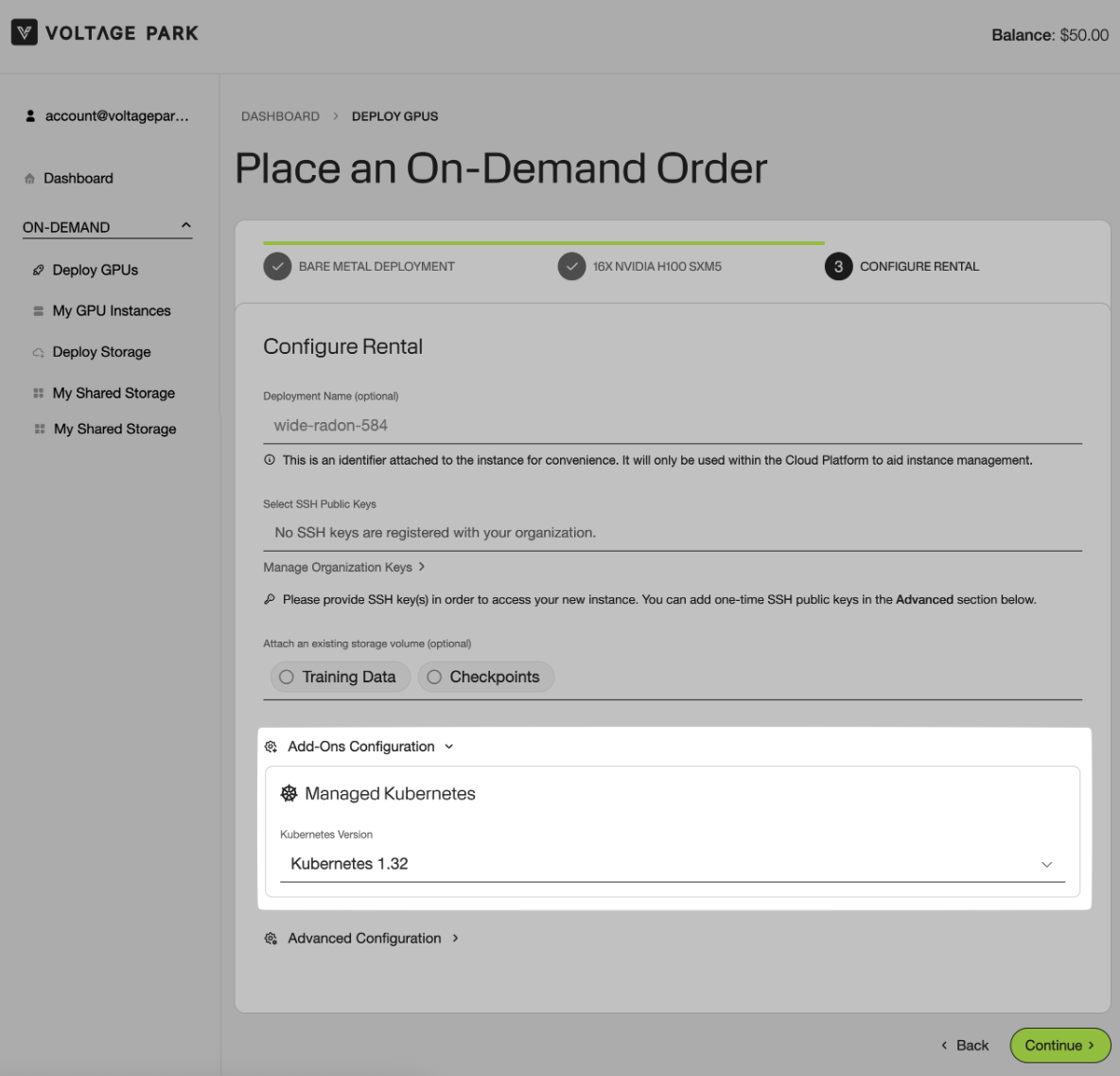
A Deployment Name for your instance is optional. This is an identifier attached to the instance for convenience. It will only be used within the Cloud Platform to aid instance management.
Make sure all the provided information is accurate > Click Deploy.
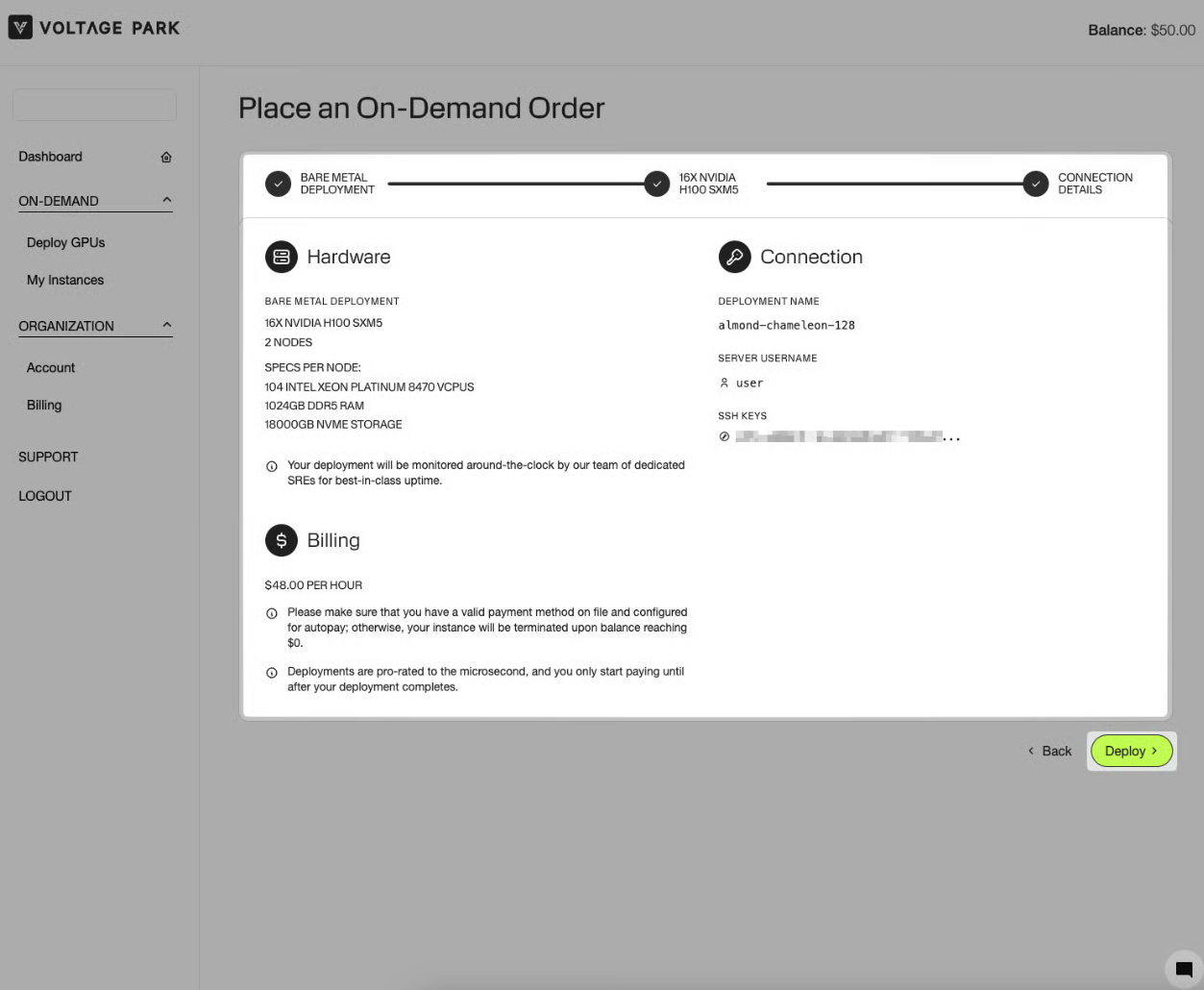
Please be advised that Bare Metal instances can take up to 15 minutes to deploy. With the Managed Kubernetes Add-On the instance can take up to 30 minutes to deploy.
Once deployed, you'll be able to see your instance details as shown below. For additional information, please review the My Instances page.
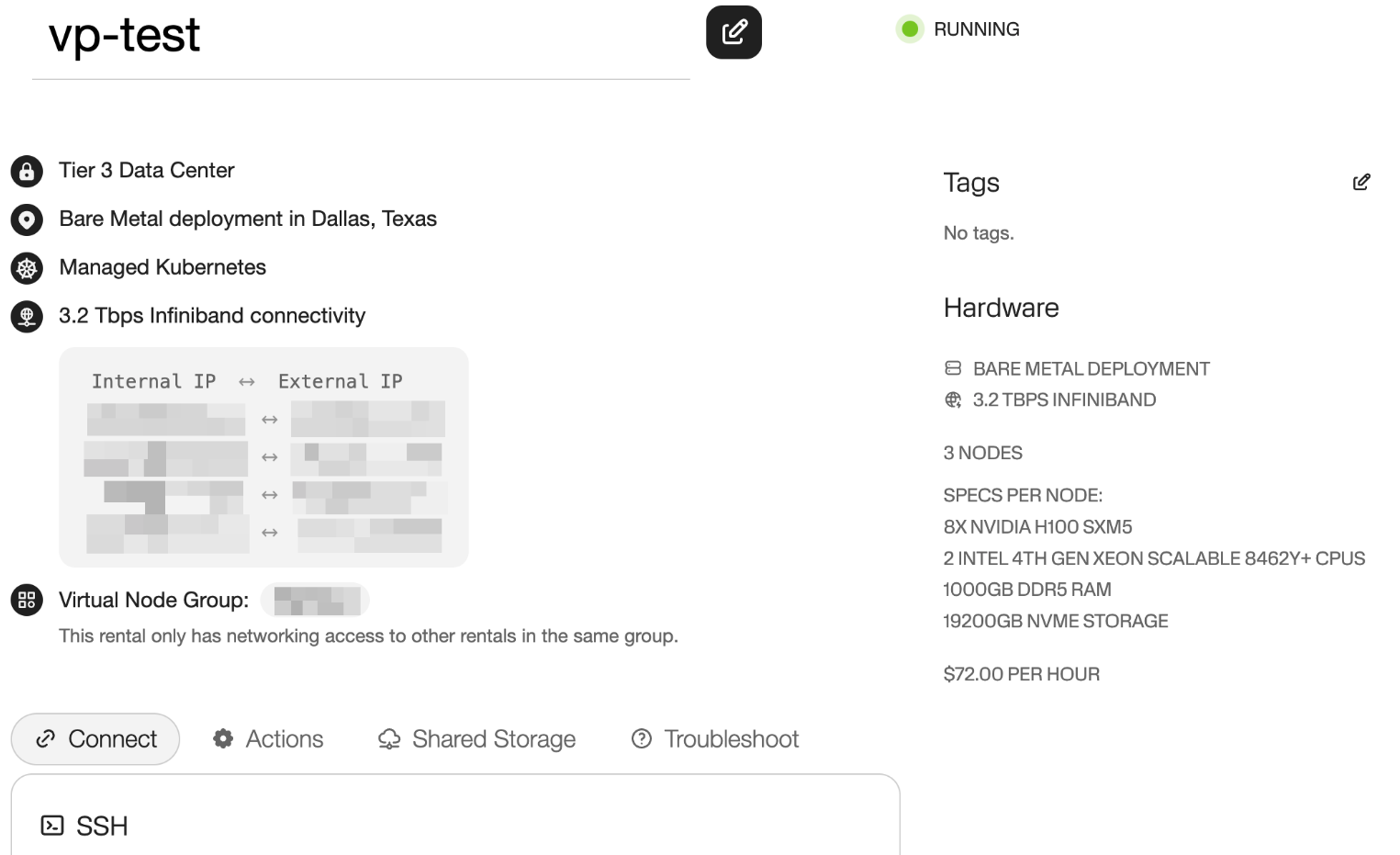
How to Connect to Your Bare Metal Instance
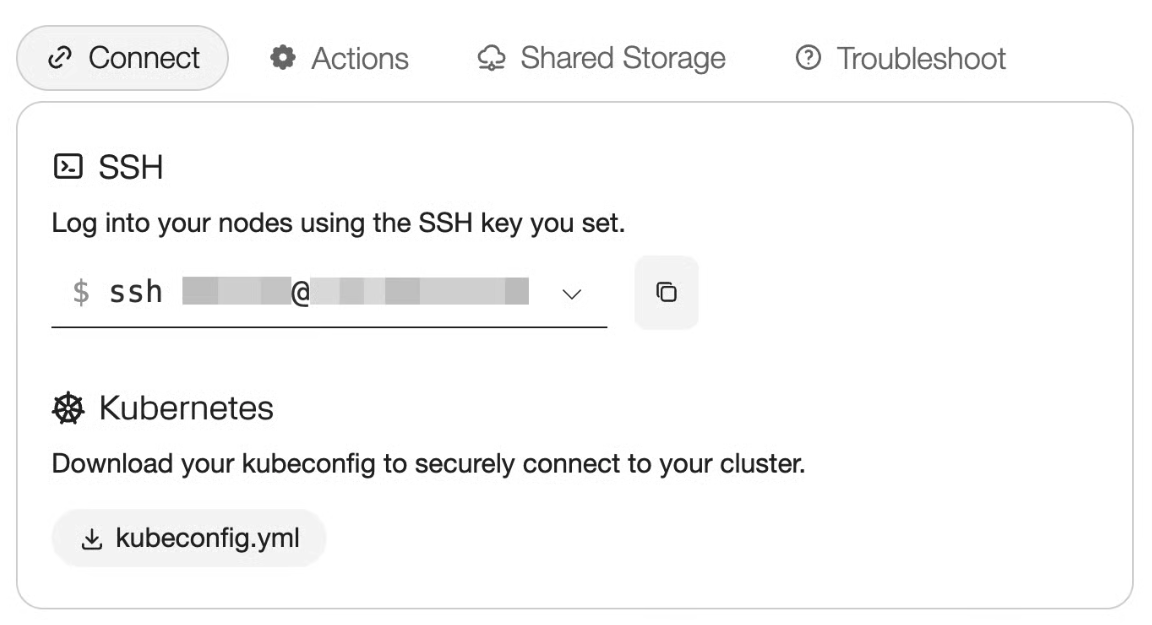
After deployment, retrieve your instance credentials from the On-Demand > My Instances > Details page.
Use an SSH client to connect to your Bare Metal instance:
ssh ubuntu@<Public_IP>
Connecting via Managed Kubernetes
After deployment, retrieve your
kubeconfigfrom the On-Demand > My Instances > Details page: