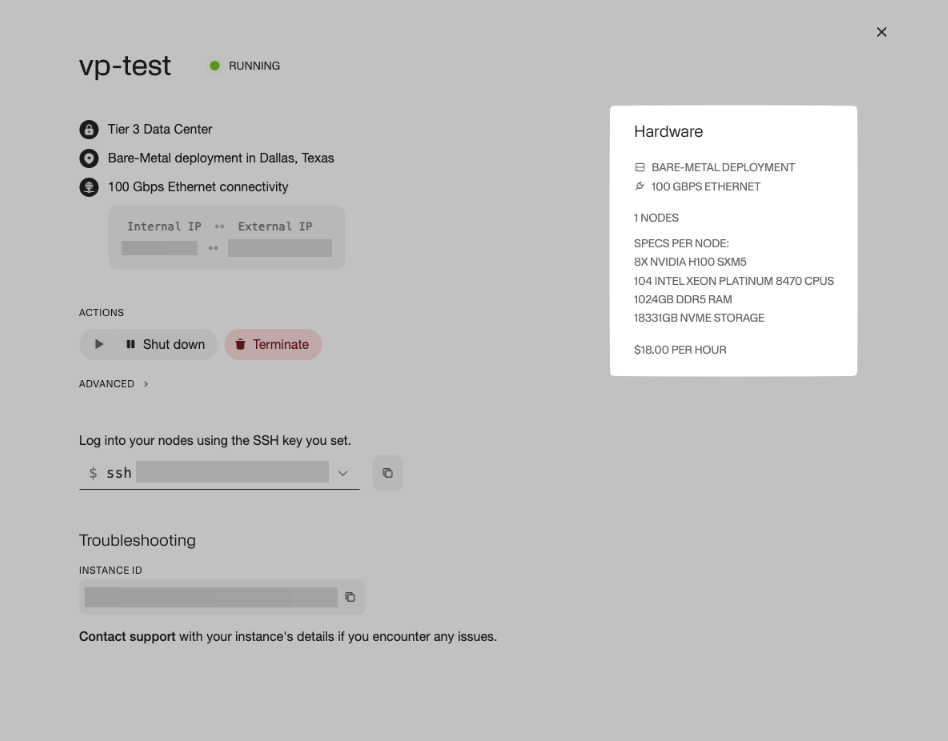
My Instances
Overview
The My Instances page manages your compute resources. Here, you can view details about each instance and perform actions to control its lifecycle.
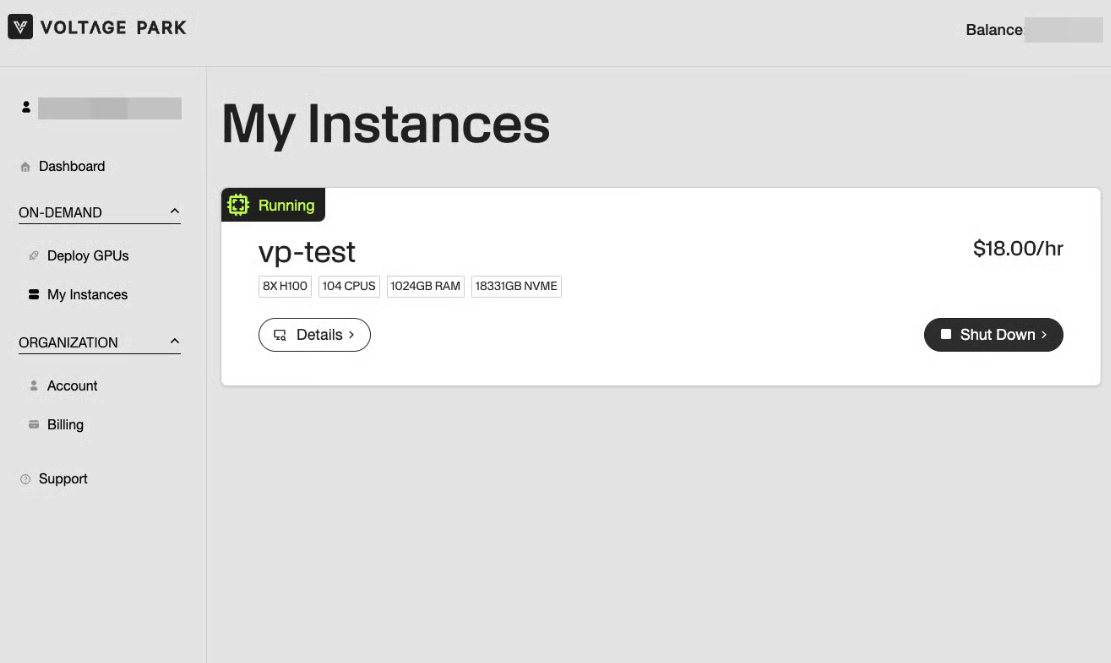
My Instances
At the top, under the instance name, you’ll quickly find essential details.
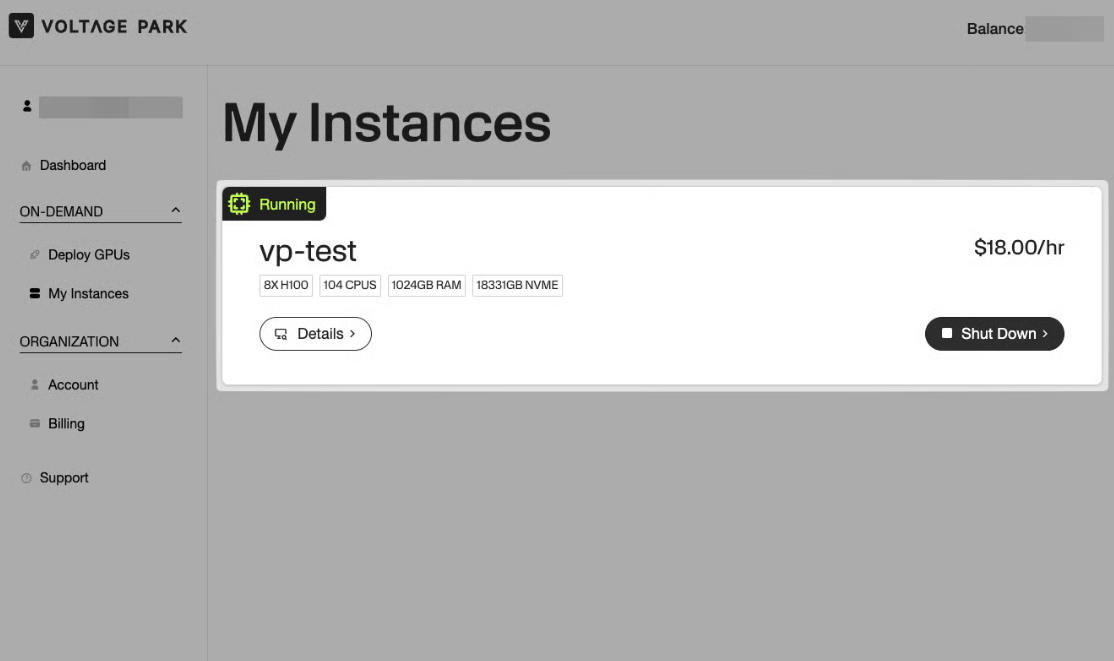
Status: The current state of the instance.
Instance Name: The name of the instance.
Pricing: Pricing per hour for your instance.
Hardware Details: This section will provide you with labels containing your instance's hardware details.
SSH Key: Quickly log into your instance using the SSH key that you set.
Details: This pop-up window will include specific details of your instance, including Actions, Troubleshooting, Forwarded Ports, and Hardware.
Shut Down: Gracefully power off the instance while retaining its data.
Details
The Details section will provide you with further details of your instance, including Actions, Troubleshooting, Forwarded Ports (Virtual Machines Only), and Hardware. Please see below for a breakdown of each section.
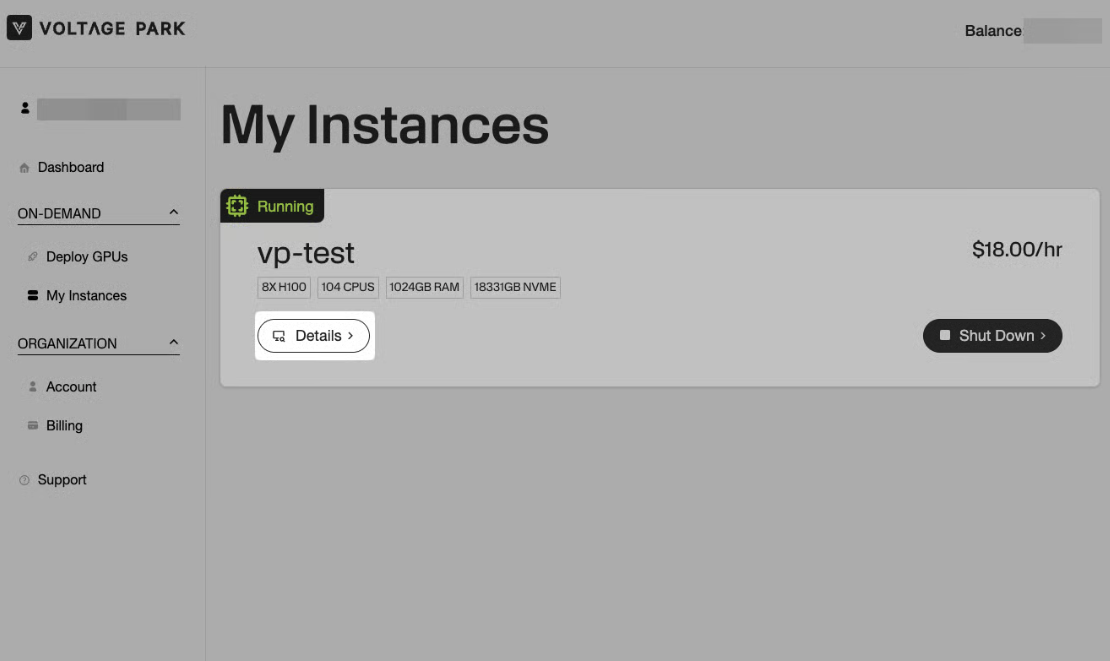
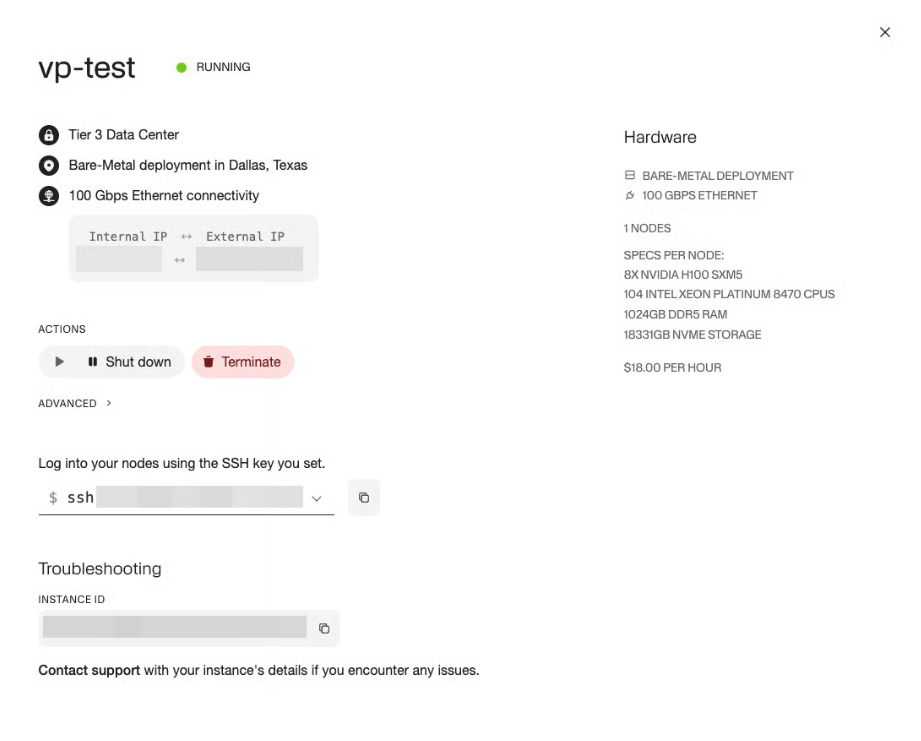
Actions
This section provides control options to manage your instance.
Shut Down: Gracefully power off the instance while retaining its data.
Stopped instances will still be charged at the full running billing rate.
Please note that there is an approximately 20-minute delay when restarting instances after they have been stopped.
Terminate: Permanently delete the instance and its associated data.
NOTE: Please be advised that if you Terminate Instance, your data will not be retained and this action is irreversible.
Advanced > Deallocate compute resources: Release GPU, CPU, and RAM resources. Once complete, you will only be billed for storage. Exclusive to virtualized instances.
Instances in an "only storage" state may need to be relocated to a new host machine on the next startup. This can take up to 2 minutes, and can result in the IP address and external ports changing.
SSH Key: Quickly log into your instance using the SSH key that you set.
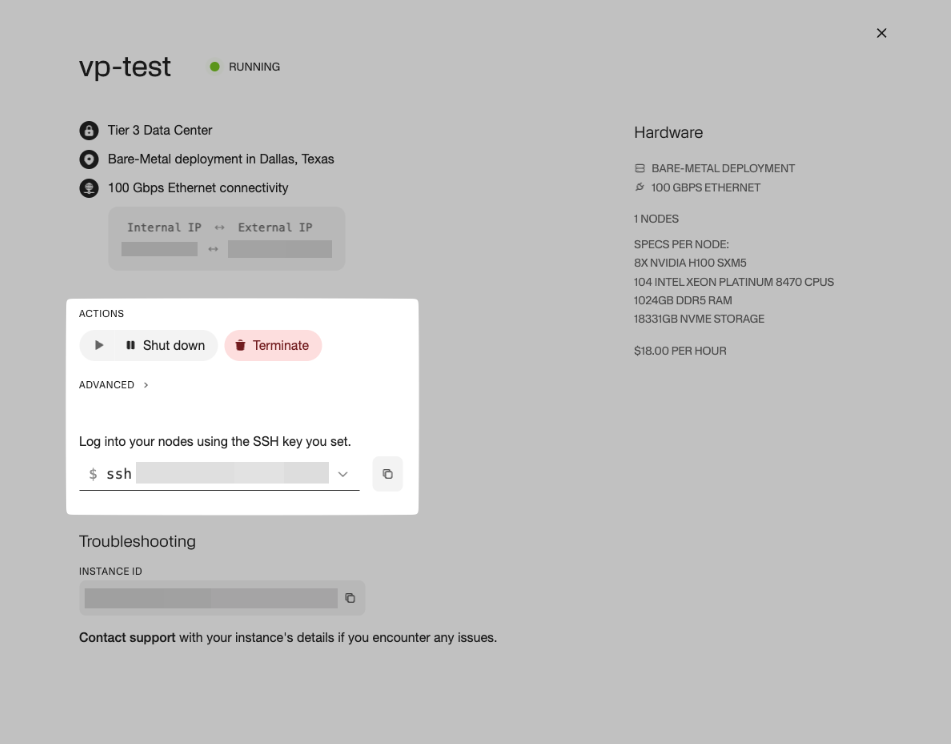
Troubleshooting
This section provides instance identifiers for debugging or contacting support. Please use these details when reaching out to support for issues with your instance.
Instance ID: A unique identifier for your specific instance.
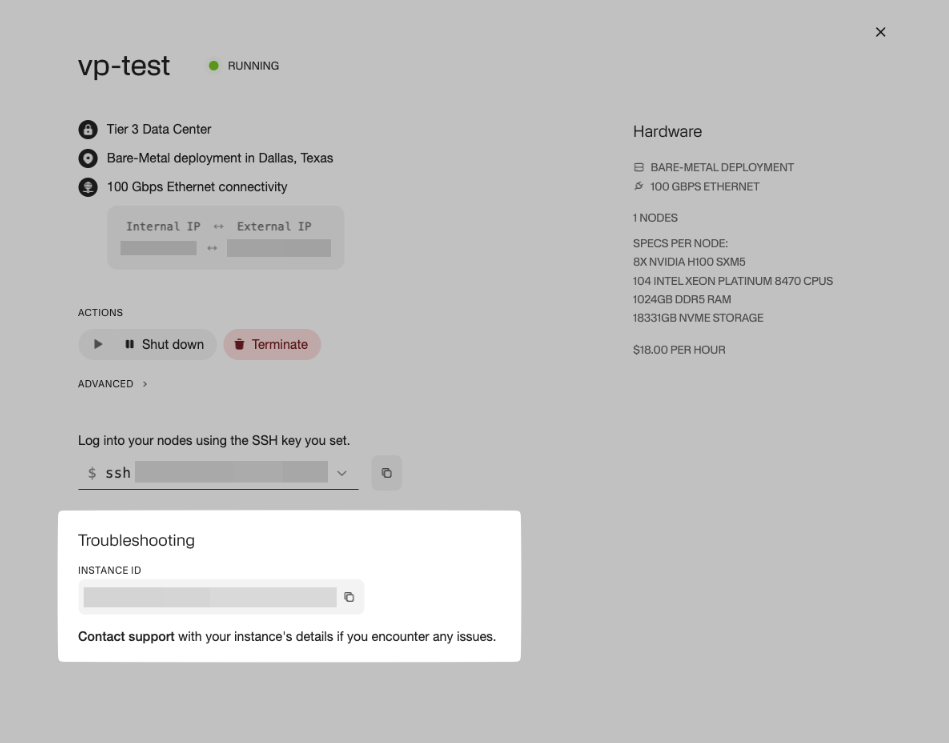
Forwarded Ports (Virtual Machines Only)
This section displays a list of port mappings that allow external access to services running on your instance. Each mapping is presented in the format:
External Port > Internal Port
External Port: The port on the public-facing network (accessible from outside the instance).
Internal Port: The port inside your instance where a service or application is running.
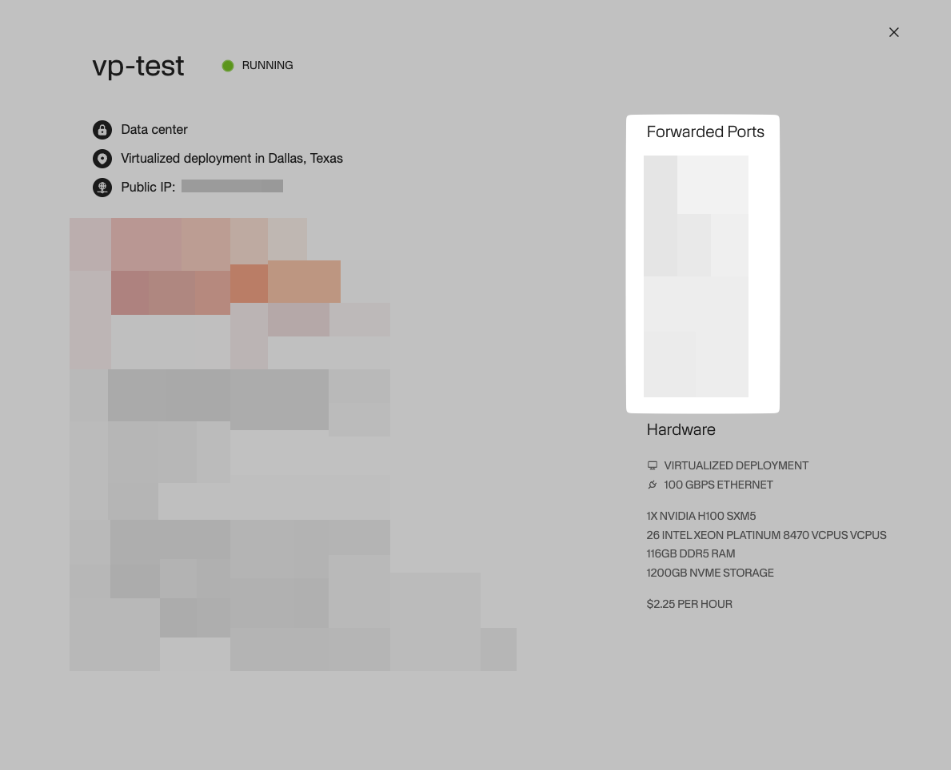
Hardware
This section provides detailed hardware and pricing information for your instance.
Deployment Type
Networking Type and Bandwidth
GPU Configuration
CPU Configuration
Storage
Pricing