
Account
Overview
Your Account page is used for managing key account details, organization information, and team collaboration on the platform.
The account page is divided into three distinct sections, each identifiable by a unique logo. These sections help you manage financial details, personal account information, and your team settings.
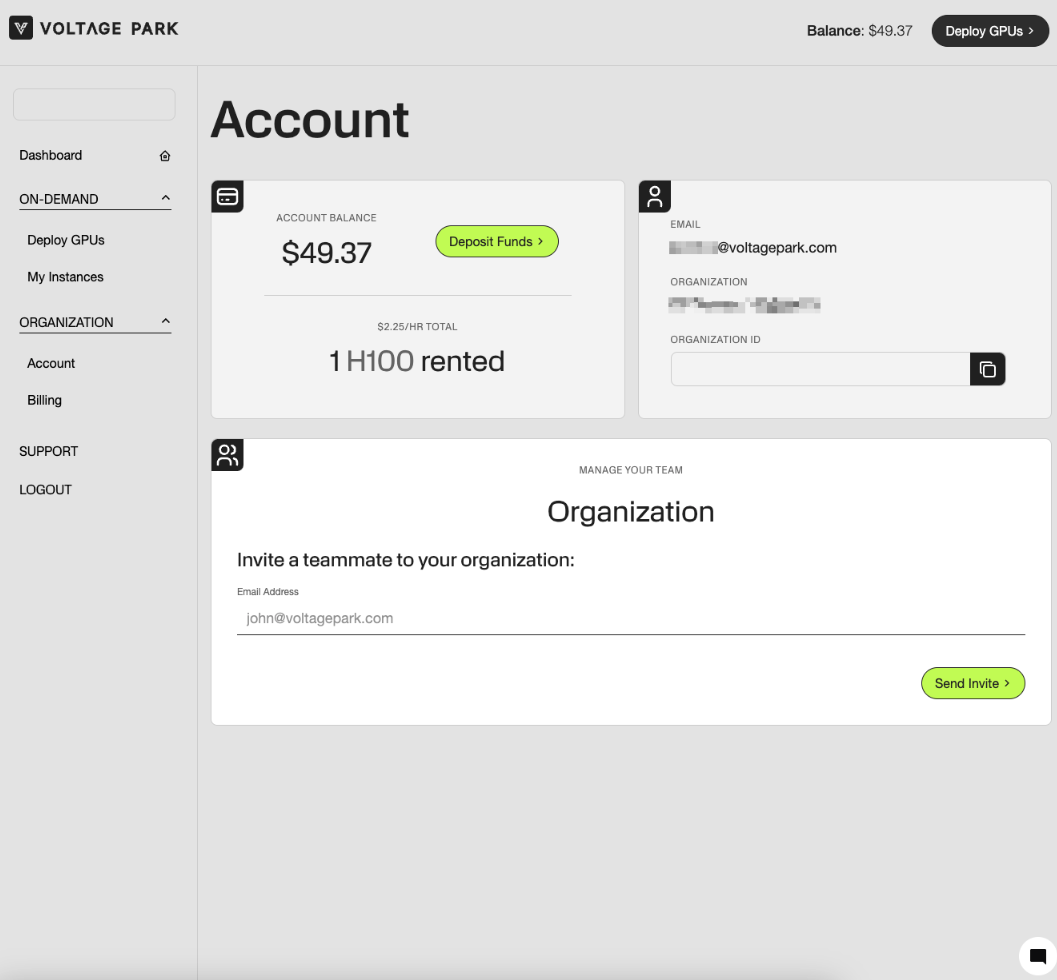
Financial Details
This section provides a snapshot of your account’s financial information and usage. Here’s what you’ll find:
Account Balance: Displays your current balance on the platform.
Pricing Per Hour: This shows the cost per hour for the resources you’re using, helping you track spending in real time.
H100 Rentals: Displays how many NVIDIA H100s you’ve rented.
Deposit Funds: Quickly add funds to your account balance by clicking this button.
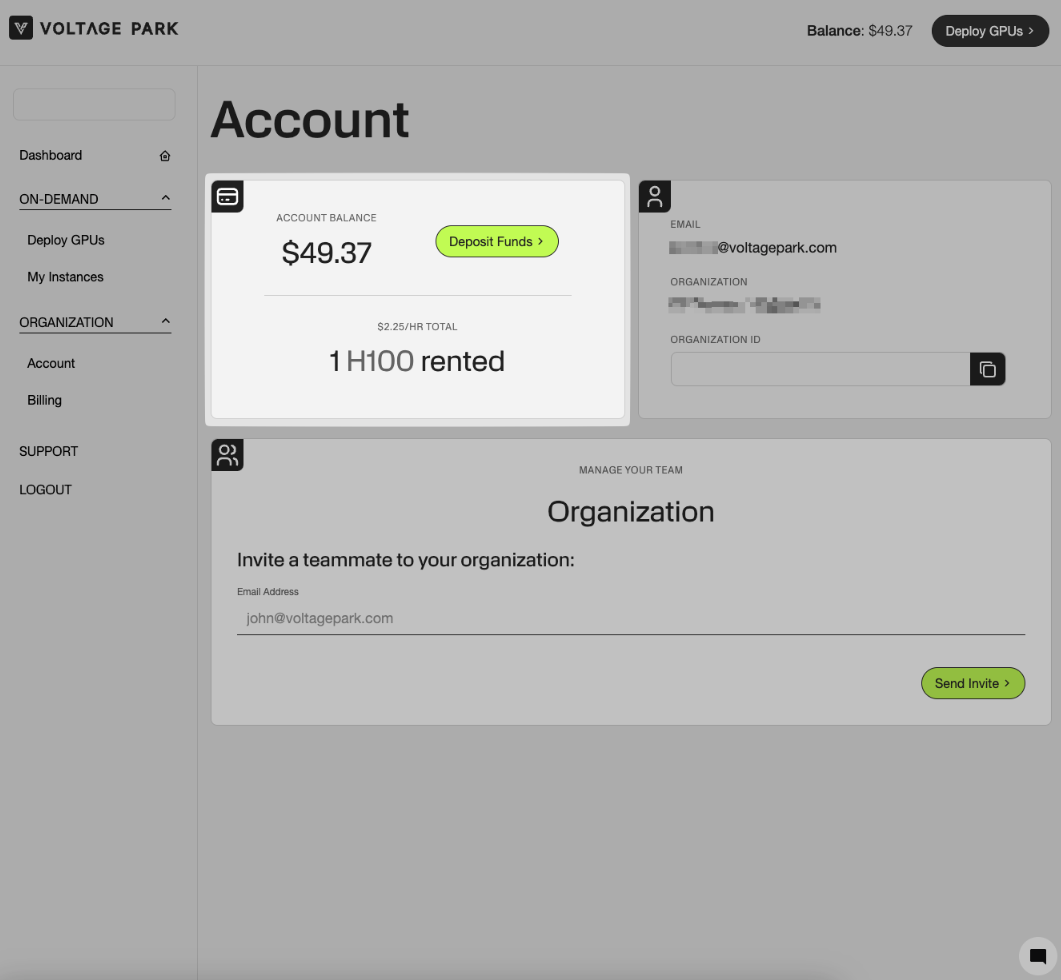
Account Information
This section contains your personal and organizational details. Here’s what’s available:
Email: Displays the email address associated with your account.
Organization: Shows the name of your organization.
Organization ID: Displays a unique identifier for your organization.
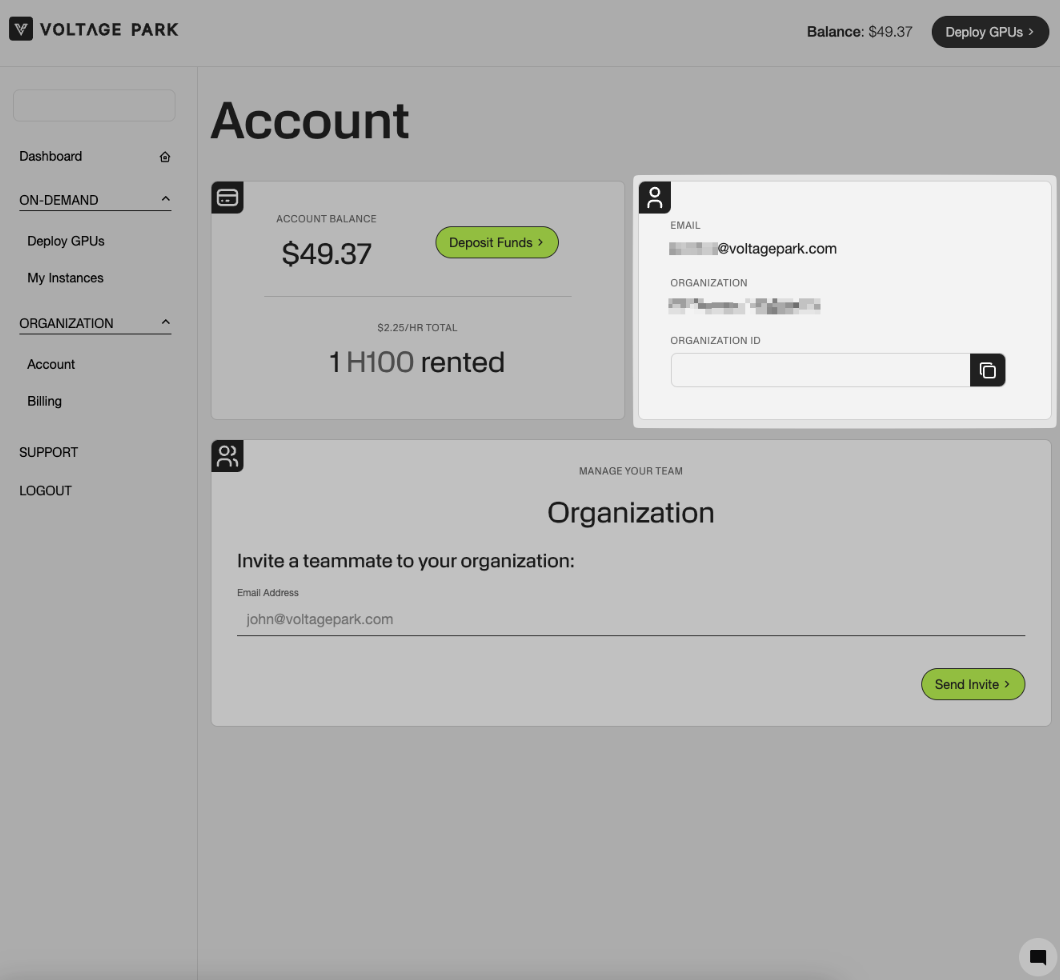
Organization Management
This section is where you manage your team and invite new members to your organization. Key features include:
Organization: Displays the list of team members currently in your organization.
Send Invite: Click this button to invite teammates to join the platform. You’ll need their email address to send an invitation.
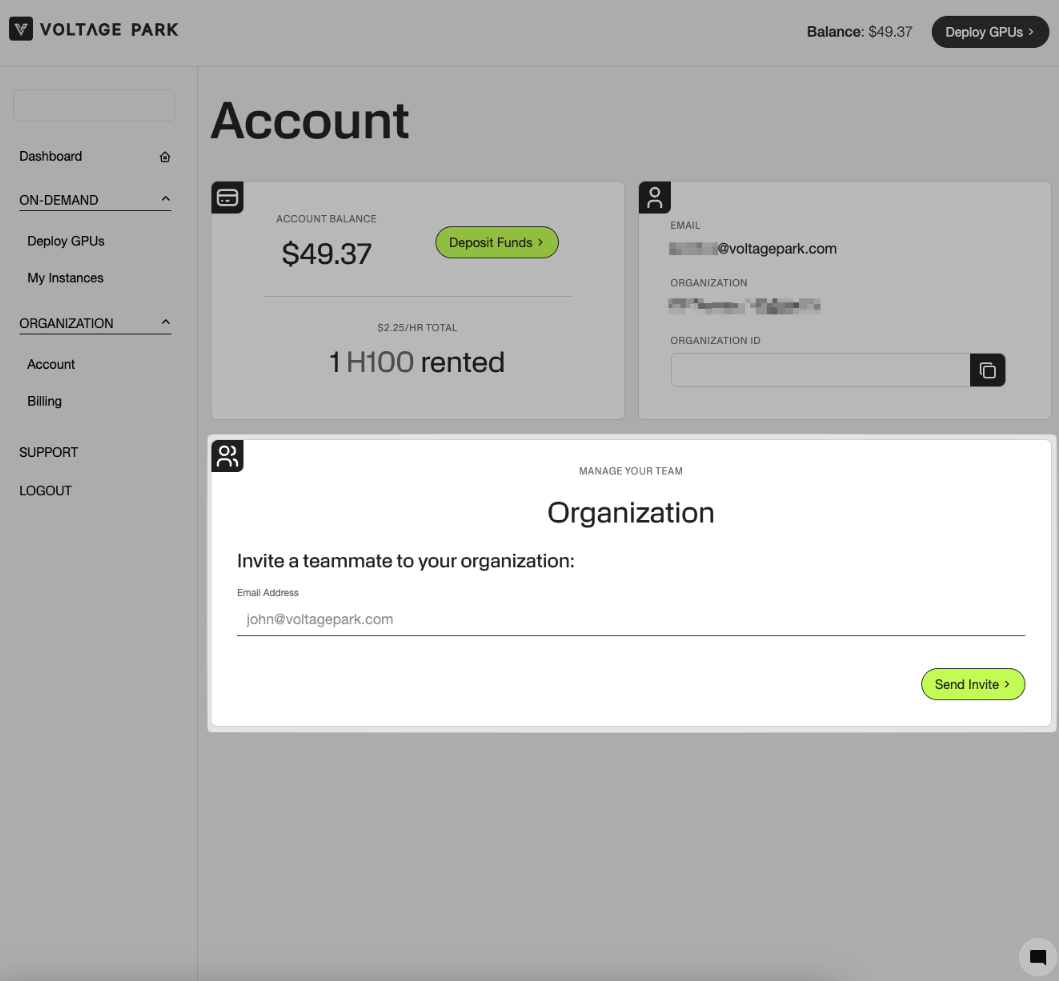
Please note that billing notifications and receipts are sent exclusively to the email address associated with the member who deposits the funds.
How to Use the Account Page
Review Financial Details and Deposit Funds
Navigate to the Credit Card Logo section.
View your Account Balance, Pricing Per Hour, and H100 Rentals.
Use the Deposit Funds button to add funds if needed.
Viewing and Copying Account Information
Go to the Person Logo section.
Review your Email, Organization, and Organization ID.
Click the copy button next to the Organization ID to copy it instantly.
Managing Your Organization
Navigate to the People Logo section.
View the list of your team members.
Use the Send Invite Button to invite new teammates:
Enter their email address in the email address field.
Click Send Invite to send the invitation.